In this guide, we will explain how to scan multiple barcodes at once and automatically populate a Repeat Group with the parsed contact information from each barcode.
1. INITIAL SETUP:
- Drag and drop a "Multi Barcode Scanner", two "Hidden", a "JavaScript", and an "API Prefill" field onto your form.
- Rename the fields as needed.

- Drag and drop three "Text" and an "Email" field inside a “Repeat” field onto your form.
- Rename the fields as needed.

2. CONFIGURE THE "MULTI BARCODE SCANNER" FIELD:
- Click the pencil icon of the "Multi Barcode Scanner" field.
- Enable the "Use Strich Barcode Scanner" option.
- Select the barcode type you want to scan (in this example, we're using "DataMatrix").

3. CONFIGURE THE FIRST “HIDDEN” FIELD:
- Click the pencil icon of the first "Hidden" field.
- Set the value to:
{{a5a6-b537-7618}}(This is the component ID of your Multi Barcode Scanner field). - Enable the "Enable Merge Fields" option.

4. CONFIGURE THE “JAVASCRIPT” FIELD:
- Click the pencil icon of the "JavaScript" field.
- Paste the code.

- Set JavaScript Load Delay to "0" under the “Advanced” section.

- Please use this code:
Note: Update the field IDs in the script to match your form.
Here,
'1179-f289-7fcc'- Component ID of the "barcode parsed values" Hidden field'6813-9f8e-12ae'- Component ID of the Repeat Group'78bf-7517-a04c'- Component ID of First Name field in Repeat Group'bb9e-66fa-33d5'- Component ID of Last Name field in Repeat Group'b2b2-4ed9-d126'- Component ID of Email field in Repeat Group'041e-2d01-14cf'- Component ID of Company Name field in Repeat Group
5. CONFIGURE THE "API PREFILL" FIELD:
- Click the pencil icon of the "API Prefill" field.
- Set "Repeat Group Field ID" to:
6813-9f8e-12ae(the component ID of the Repeat Group).

- Enable "Disable API call on page load".

- Set "Local Data Field" to:
1179-f289-7fcc(the component ID of the "barcode parsed values" Hidden field).

- Map the prefill mappings as follows:

6. TEST THE FUNCTIONALITY:
- Try your form.

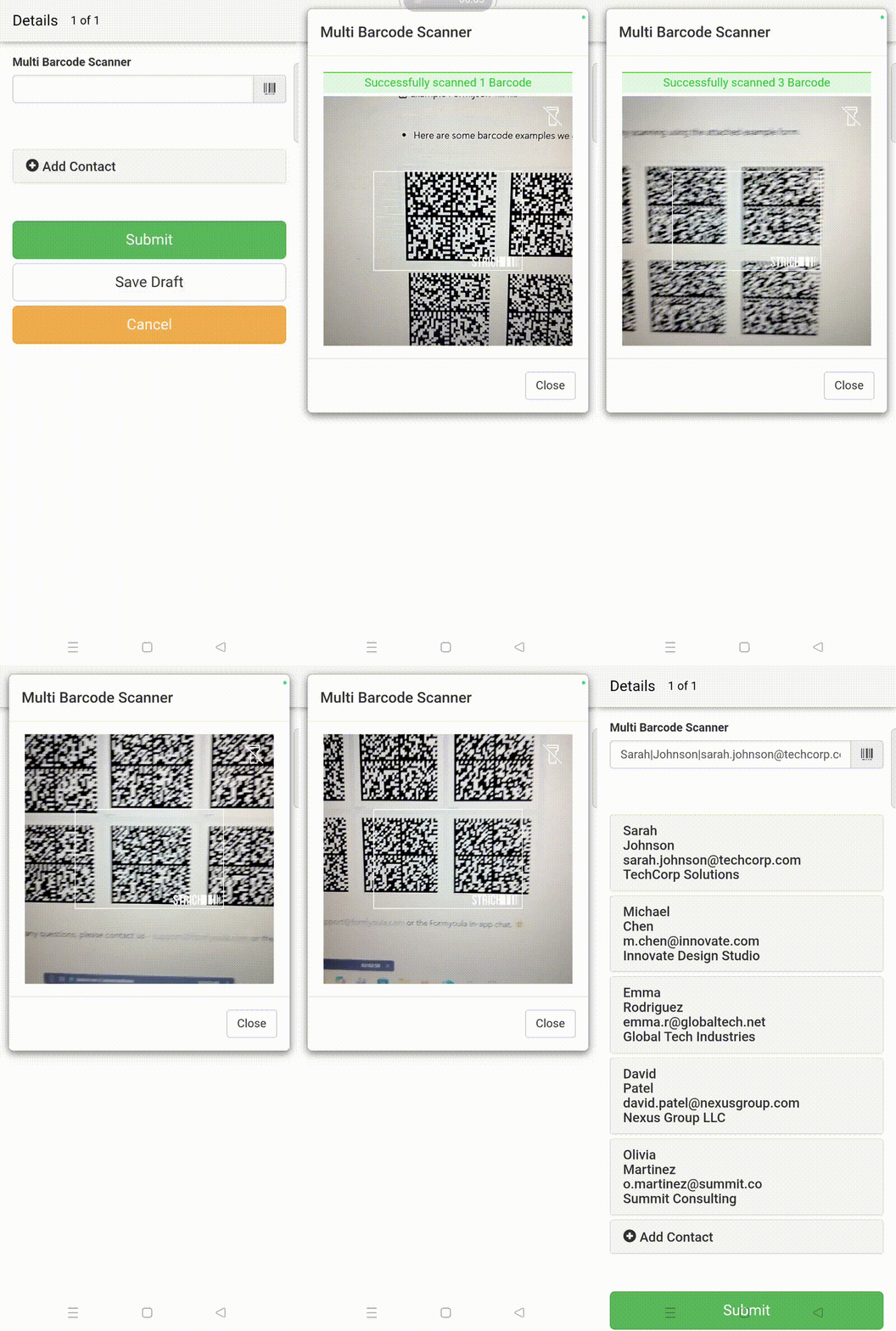
- Scan multiple barcodes using the Multi Barcode Scanner.

- The form will automatically parse each barcode and populate the Repeat Group with the contact information.
- After scanning, the Repeat Group will display each contact as a separate entry.

- Here is a demonstration of the multi-scanning process using the Formyoula mobile app.
Example Form.json11.9 KiB
- Here are some barcode examples we can try scanning using the attached example form.

For any questions, please contact us - [email protected] or the Formyoula in-app chat. 🙂